
Garmin Express Download Options: choose the right platform
The easiest way to compare Garmin Express download options is to start with the computer's operating system, not the Garmin device model. A Windows PC needs the EXE; a Mac needs the DMG. They are separate desktop applications, so renaming one file or opening it on the other platform will not make it compatible. If you manage devices from more than one computer, download the matching installer on each supported computer.
Check the operating-system version in Windows Settings or About This Mac. If it meets the minimum above, use the matching button. Otherwise, read the legacy guidance before downloading; repeating an attempt with the wrong installer will not change compatibility.
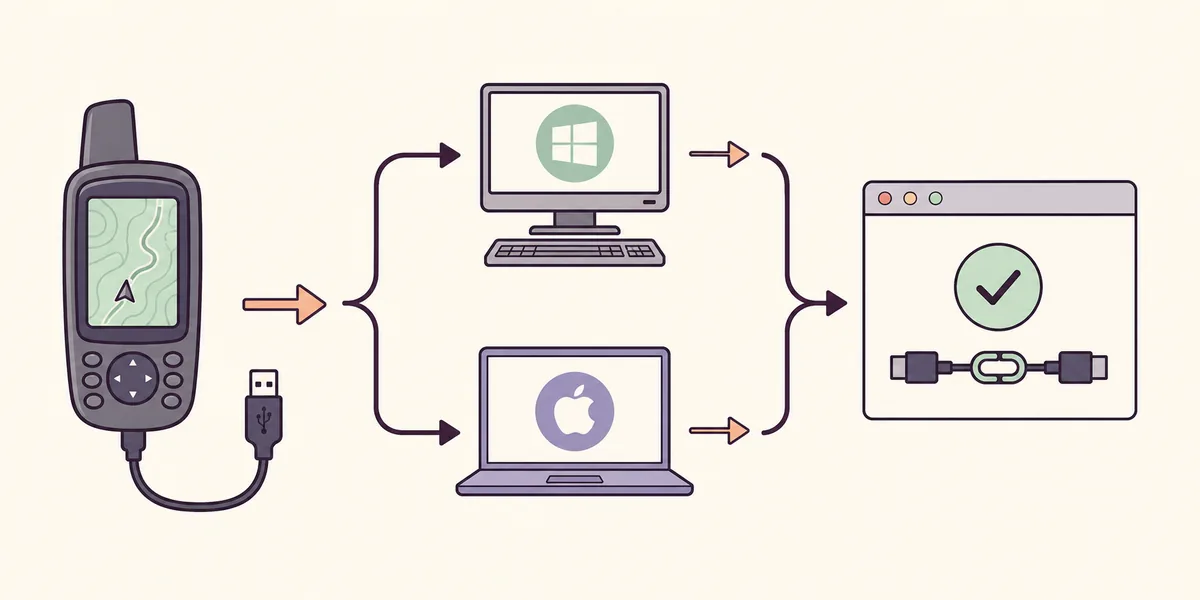
Check Garmin Express system requirements
Garmin's current download guidance lists Windows 10 or newer and macOS 13 or newer. Confirm the exact requirement on Garmin's product page because support can change. The Windows and Mac applications are not interchangeable, and a newer installer may stop supporting older operating systems.
Use an account that can approve normal setup prompts, a reliable connection and a power source. Map downloads can be large; free space on the computer and on the Garmin device are separate limits, so check both before a long update.
- Confirm the computer runs Windows 10 or newer, or macOS 13 or newer.
- Use the platform-specific EXE or DMG without renaming or repackaging it.
- Keep enough free space on both the computer and device for the selected task.
- Use a stable connection and power source before starting a map or software update.
Download Garmin Express for Windows
Choose the Windows button to request GarminExpress.exe from Garmin's download host. The official Garmin Express for Windows page describes the Windows application and its requirements. This guide does not host a copy: if the browser's final download address changes to an unrelated domain, cancel and return to Garmin's product page.
When the file finishes, open it from the browser's downloads list or the Downloads folder. Read the Windows security prompt and confirm that it refers to the Garmin installer you requested. Approve only the expected setup prompt. Let the installer finish before opening Express or connecting several devices; running duplicate copies can make it harder to identify where a setup problem occurred.
- 1
Check Windows
Confirm that the PC runs Windows 10 or newer.
- 2
Download the EXE
Use the Windows button and verify Garmin's download domain.
- 3
Run setup once
Open GarminExpress.exe, review the permission prompt and finish setup.
Download Garmin Express for Mac
Choose the Mac button to request GarminExpress.dmg from Garmin. The Garmin Express for Mac page is the place to confirm the supported macOS release. A DMG is a Mac disk image, not a Windows installer. If a Mac reports that the operating system is too old, do not repeatedly open the same file; check the official older-version information first.
After the download completes, open the DMG from Finder and follow the on-screen installation instructions. macOS may ask you to confirm that you intended to open the application. Review the prompt and the application name rather than disabling security settings globally. When setup finishes, launch Garmin Express from the installed application location and confirm that it opens before adding a device.
- 1
Confirm macOS
Check About This Mac for macOS 13 or newer.
- 2
Open the DMG
Download from Garmin, then open GarminExpress.dmg in Finder.
- 3
Finish setup
Follow the prompts, then launch the app from Applications.
Verify the download source and version
The buttons on this page use Garmin's download host, download.garmin.com. Check the host shown by your browser if a download is interrupted or redirected. A search-result ad, file-sharing site or third-party download portal is not proof that an installer is genuine. Do not install an extra download manager, browser extension or bundled utility just to retrieve Garmin Express.
Release information can change. On November 5, 2026, Garmin's support article listed Windows 7.29.1 dated July 21, 2026, and Mac 7.29.3 dated September 30, 2026. These are the dates in that source, not a guarantee that no later release exists. Check Express or Garmin support for newer information.

- Confirm the download host ends in garmin.com and is the file you requested.
- Review the operating-system requirement before opening the installer.
- Check the in-app update notice or official support page for later release changes.
- Do not infer file size, security status or release date from an unofficial mirror.
What to do after the Garmin Express download
Complete setup, open Garmin Express and then connect one compatible device with a USB data cable. A charging-only cable may not carry data; try a known data cable if Express cannot identify the product.
Review the tasks shown before starting an update. Check storage, keep the computer awake and do not disconnect the device during a transfer. Available options depend on the product and account.
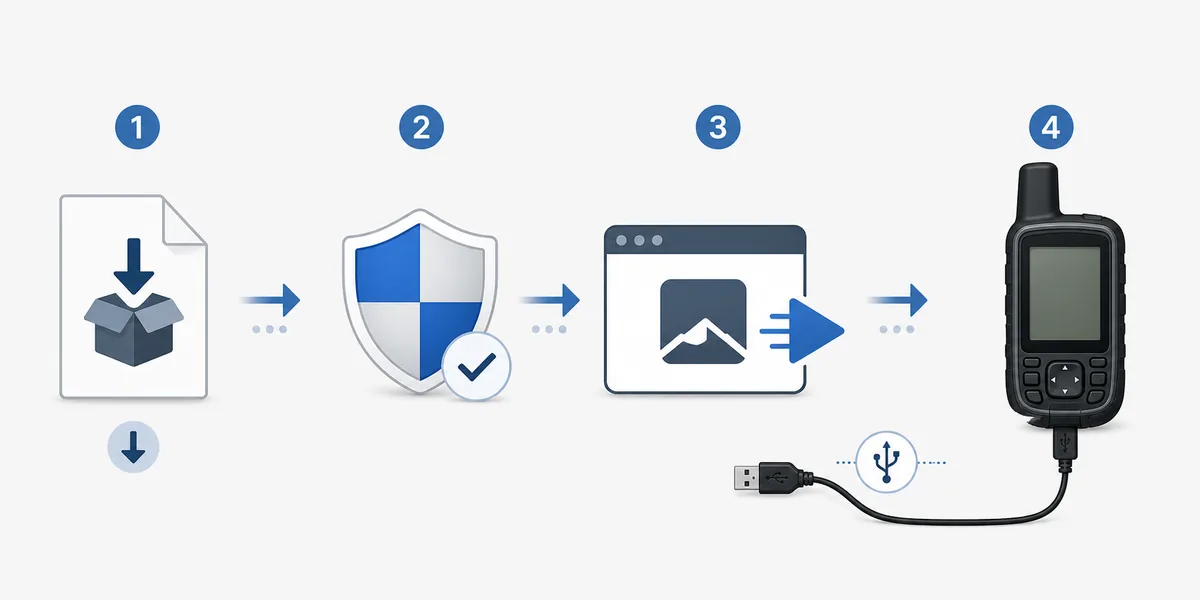
- 1
Open the application
Launch the installed Windows or Mac app and let its first screen finish loading.
- 2
Connect one device
Use a USB data cable and add the device from within Garmin Express.
- 3
Review before updating
Check the task, storage and power conditions, then follow the prompts shown for that device.
Older computers and other platforms
If Windows is older than 10 or macOS is earlier than 13, confirm Garmin's current requirement and legacy guidance. Older installers may support only a limited operating-system range. Avoid download mirrors and do not assume an old release supports every current device service.
The EXE and DMG are desktop installers, not Android, iPhone, iPad or Chromebook packages. Linux users should review the site's compatibility guidance rather than treating Wine as officially supported. For mobile activity sync, use Garmin's mobile service.
Check older releases
Read the supported operating-system notes before choosing a legacy installer.
Older version guidanceCompare requirements
Confirm the current Windows or Mac minimum before trying setup again.
System requirementsLinux guidance
Review the limits and alternatives for Linux computers.
Linux compatibilityTroubleshoot a Garmin Express download or install
Identify the failed step: download, installer, app launch or device detection. Re-download an incomplete file from Garmin over a stable connection; check the operating system if setup refuses to continue; restart once if installation finishes but the app will not launch.
If Express opens but cannot see a device, test a data cable and another direct USB port before reinstalling. Avoid deleting device data, installing random drivers or disabling security protections as a general fix.
- Identify the exact stage and message instead of repeating the entire download process.
- Check that the downloaded file matches the computer's platform and is complete.
- For a missing device, test a data-capable cable and direct USB port before reinstalling.
- Use the focused install and troubleshooting guides for the next diagnostic step.
Garmin Express download FAQ
How do I compare Garmin Express download options?
Choose the Windows EXE for a supported Windows PC or the Mac DMG for a supported Mac. Check the operating-system version before you start; the two files are not interchangeable.
Are the Garmin Express download buttons official?
The buttons point to Garmin's download domain, download.garmin.com. This site is an independent guide and does not store, modify or repackage the installers.
Can I use the installer on a phone or Chromebook?
No. The EXE and DMG are desktop installers for supported Windows and Mac computers. They are not mobile or Chromebook packages.
What should I do if my operating system is too old?
Check Garmin's official legacy guidance for the exact operating-system range and version. Do not download an unverified archive or assume an older app will support a current device.
Does Garmin Express update the device as soon as I install it?
No. Install and open the desktop app, add a compatible device, then review the tasks presented for that product. Keep the computer and device powered during a transfer.
How do I check whether a newer Express release exists?
Use the application's update check or Garmin's support article. Release notes and version dates can change after this page is reviewed, so do not rely on a copied version number indefinitely.