
Check the current Garmin Express version
Verified July 30, 2026: the current Garmin-hosted Windows installer reports file version 7.29.1.0, while Garmin’s Mac page lists version 7.29.2.
A version number is more useful than a vague message that the application is current. Open the application settings, About window or update menu available on your platform. If your version matches the current release and Express opens normally, you do not need to reinstall simply because a map or device update is waiting.
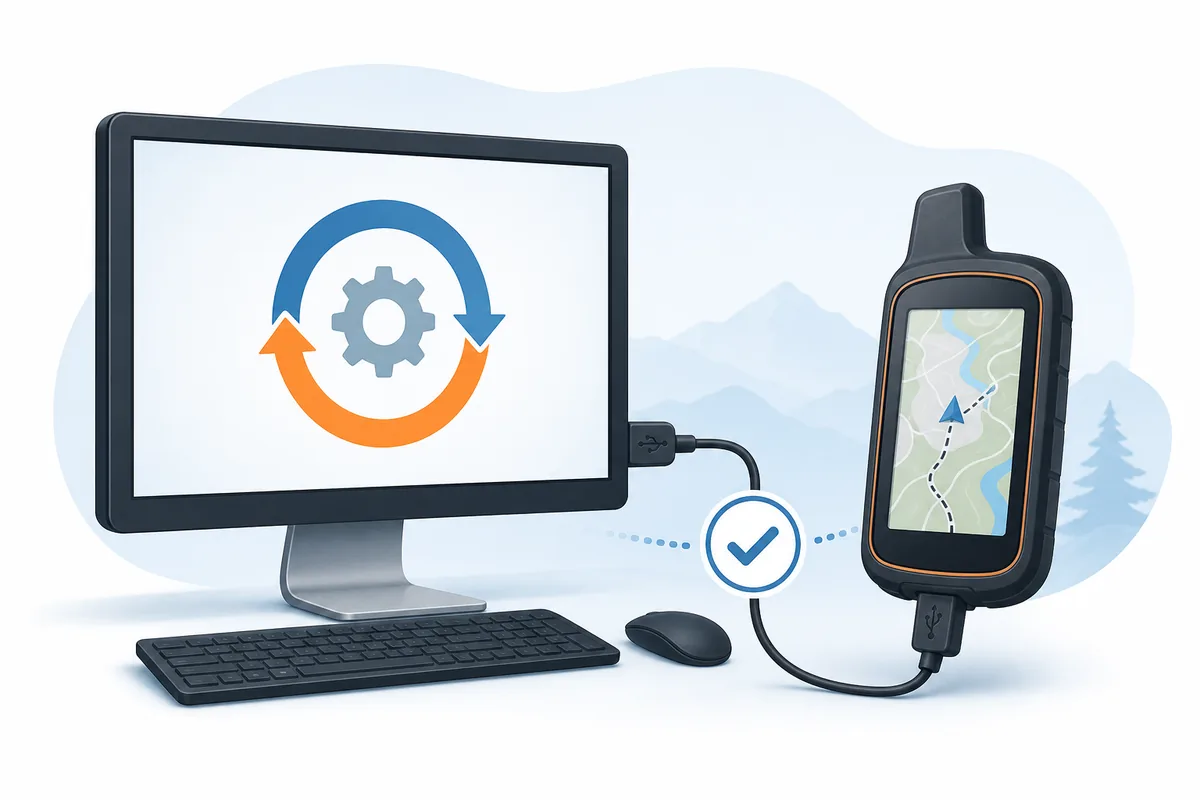
The image below is an editorial illustration, not a Garmin application screenshot. It represents the computer-to-device maintenance workflow without pretending to show the current interface.
| Platform | Verified version | Official installer | Minimum system |
|---|---|---|---|
| Windows | 7.29.1 | GarminExpress.exe | Windows 10 or later |
| Mac | 7.29.2 | GarminExpress.dmg | macOS 13 or later |
How to update Garmin Express
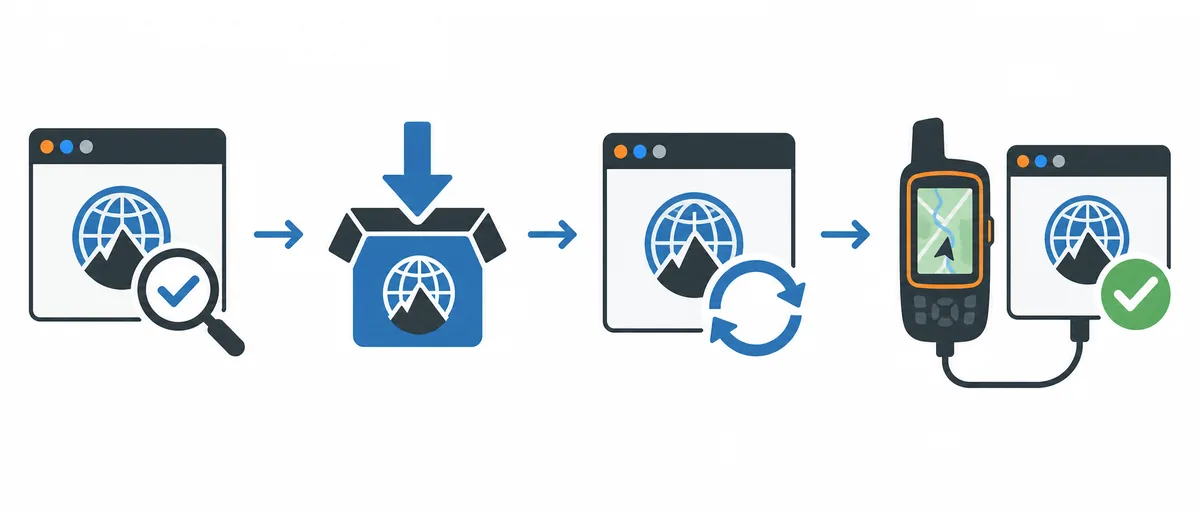
Use this sequence whether Garmin Express displays an update prompt or you decide to refresh the application with Garmin's current installer. Finish or cancel any active map, device-software or content transfer first. Updating the desktop app during a device write can create unnecessary risk and make it harder to identify which process failed.
- 1
Record the installed version
Open Garmin Express and note the version shown in its settings, About window or update area. Keep the current platform requirement in mind.
- 2
Finish device activity
Wait for any map, firmware, sync or content transfer to finish. Safely disconnect the device only after Express reports completion.
- 3
Use the application update option
Accept the official in-app update prompt or choose the available check-for-updates command. Do not download an updater from an archive or driver site.
- 4
Allow the installer to finish
Keep the computer powered and online. Approve the operating-system prompt only when the publisher and source are consistent with Garmin.
- 5
Restart Garmin Express
Close and reopen the application, or restart the computer if the installer requests it. Confirm that no second old instance remains open.
- 6
Verify before reconnecting
Confirm the new version, then connect one compatible Garmin device and test detection before starting another large update.
Update Garmin Express on Windows
On Windows, begin inside Garmin Express when the application opens normally. Check its settings or update prompt, close active device work and let the official updater replace the application files. Windows may display a User Account Control confirmation; verify that the request belongs to the Garmin installer you launched.
If the in-app process loops, disappears or reports that installation failed, download the current Garmin-hosted EXE from our Windows download guide. Running the current installer over an existing installation can repair missing application files while preserving the normal program location. If that still fails, use the clean-reinstall sequence in the troubleshooting guide instead of repeatedly launching the same broken updater.
- Use Windows 10 or later and install pending Windows updates first.
- Close Garmin Express in the taskbar notification area as well as the main window.
- Keep antivirus protection enabled; review a block rather than disabling security broadly.
- Use GarminExpress.exe from download.garmin.com when the in-app updater fails.
- Restart Windows when files remain locked or the installer explicitly requests a reboot.
Update Garmin Express on a Mac
On a supported Mac, open Garmin Express and use its application update option when available. Quit the app fully before replacing it; closing only the visible window may leave the process running. If macOS asks for an administrator password, confirm that you intentionally launched Garmin's current DMG or the updater from inside Express.
When the application cannot update itself, use the current GarminExpress.dmg from our Mac download guide. Do not assume the current build supports Catalina or another older release. Garmin lists macOS 13 or later for the current app and provides separate legacy guidance for older systems.
- Confirm the Mac runs macOS 13 or later before installing the current release.
- Quit Garmin Express from the application menu, not only with the red window control.
- Use the Garmin-hosted DMG and follow the normal Applications-folder installation flow.
- Review Gatekeeper warnings carefully; do not bypass security for an unrelated archive.
- Reopen Express and verify the version before attaching a device for a long transfer.
Garmin Express app updates vs device and map updates
The phrase Garmin Express update can describe three different jobs. This page covers the desktop application itself. After the app is current, it may offer software or maps for a connected Garmin product, but those jobs have different storage, entitlement, power and USB requirements.
Do not reinstall Garmin Express just because a map download is slow. First identify whether the failing layer is the desktop application, the connected device, the map package, the network or available storage.
| Update | What changes | Needs a device | Best guide |
|---|---|---|---|
| Garmin Express app | The Windows or Mac desktop application | No | This page |
| Device software | Firmware or software on the connected Garmin product | Yes | Follow the model-specific offer in Express |
| Map update | Eligible map data and coverage | Yes | Update Garmin maps |
| Garmin Connect | Web or mobile activity services | Usually no Express update | Express vs Garmin Connect |
Fix a failed Garmin Express update
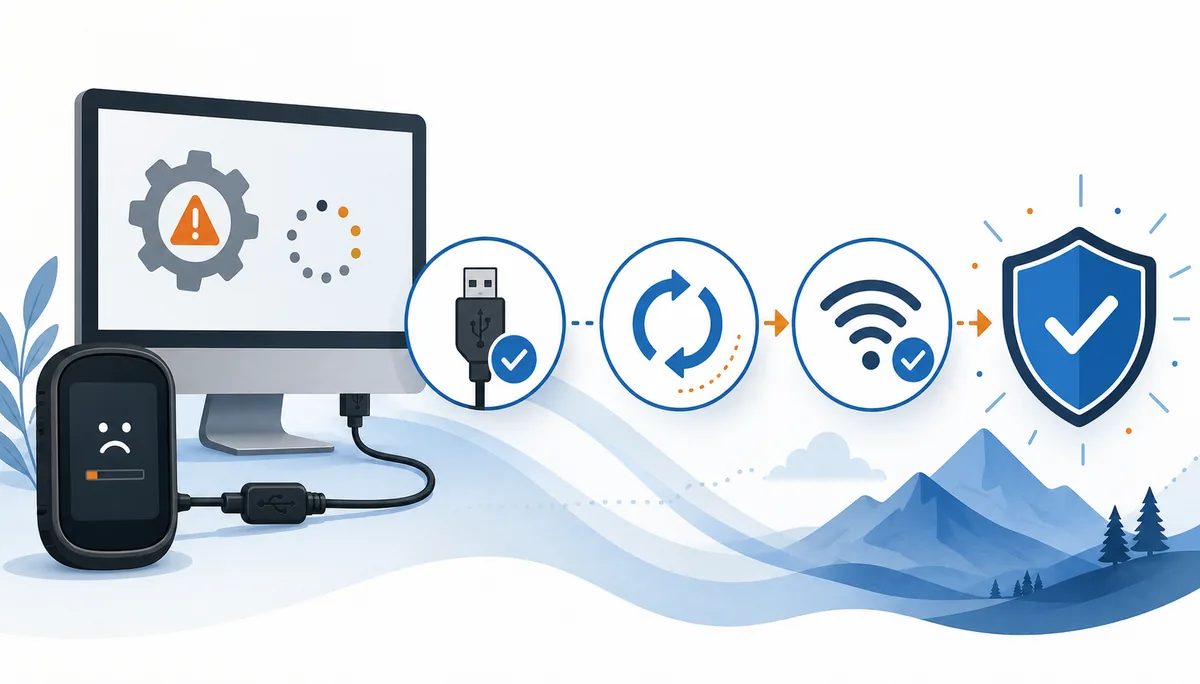
If the Garmin Express update stops, capture the exact message and note whether the app, installer or connected device was active. Then remove one uncertainty at a time. Random registry cleaners, driver bundles and unofficial patched installers add more variables and can turn a recoverable application problem into a security problem.
Start with a normal restart, a stable connection and enough disk space. Disconnect the Garmin device unless the error specifically concerns device software that Express is already writing. If the current official installer succeeds but the app still will not open, continue with the focused Garmin Express troubleshooting guide.
If Garmin Express cannot update or shows “There was an error installing the update,” record the exact message and platform before trying again. Restart normally, confirm storage and network, then use the current Garmin-hosted installer; do not jump to a third-party archive or a legacy build without a documented compatibility reason.
- Restart the computer and make sure no Garmin Express process remains open.
- Free disk space and verify that the network is stable and not behind a broken proxy or VPN.
- Disconnect the Garmin device before repairing the desktop app unless an active device write is in progress.
- Run the current official EXE or DMG again rather than an older third-party installer.
- Use a clean reinstall only after the simpler update and repair paths fail.
- Reconnect one device and test detection before starting a large map transfer.
When should you reinstall Garmin Express?
Reinstall only when the application update cannot complete, Express will not open, core files appear damaged or the installed version remains unchanged after a successful-looking update. A reinstall is not the first fix for a missing device, slow map download or account entitlement problem. Before removal, note connected products and any useful diagnostic message, then use Garmin's current installer and the normal operating-system uninstall process.
Repair the current app
Run the current installer over the existing application when the update process is incomplete.
Review installation stepsCheck system support
Confirm Windows, macOS, storage and internet requirements before repeating the update.
Check requirementsUse focused troubleshooting
Follow the clean-reinstall path only after launch, storage and network checks fail.
Open troubleshootingGarmin Express update FAQ
Does Garmin Express update automatically?
Garmin Express can notify you that an application update is available, but the prompt and installation flow vary by operating system and release. Verify the installed version after the app restarts.
What is the current Garmin Express version?
Verified July 30, 2026: the current Garmin-hosted Windows installer reports file version 7.29.1.0, while Garmin’s Mac page lists version 7.29.2.
Will updating Garmin Express update my maps too?
No. Updating the desktop application is separate from installing maps or device software. Use the map-update workflow only after Express is current and the connected device is recognized.
Why is Garmin Express stuck checking for updates?
Restart the app and computer, confirm network and disk space, close VPN or proxy issues, then run the current Garmin-hosted installer if the in-app process still loops.
Can I update Garmin Express without connecting a device?
Yes. The desktop application can be updated before a Garmin device is connected. In fact, updating the app first makes later device troubleshooting easier.
Should I uninstall Garmin Express before every update?
No. Use the normal in-app update or current installer first. Uninstall only when the update repeatedly fails, the app will not open or the installation appears damaged.
Why can't I update Garmin Express?
Check whether an active device transfer is still running, restart the computer, confirm free storage and a stable network, then use the current Garmin-hosted installer if the in-app update loops. Keep the exact error message for the next troubleshooting step.