
Garmin Express troubleshooting: quick diagnostic
The point where the workflow stops usually identifies the right category. If the EXE or DMG never opens, focus on installation and compatibility. If Express opens but no device appears, focus on USB and device state. If the device appears but an update fails, focus on network, storage and update continuity.
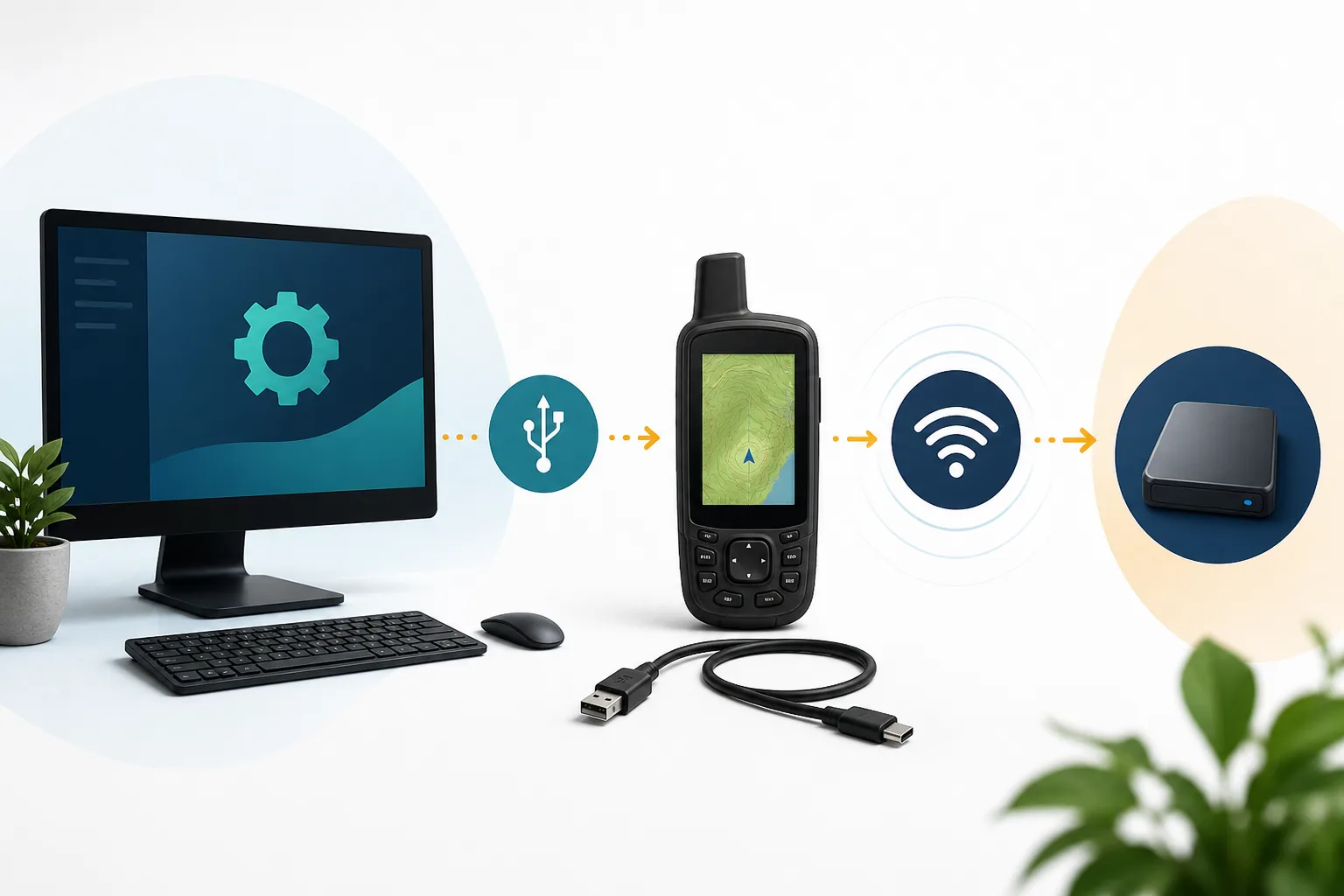
When Garmin Express is stuck at “Plug in your device,” the message usually points to the connection layer rather than a missing application update. Wake and unlock the device, use a known data-capable cable, connect directly to the computer, and test another port before changing drivers or reinstalling Express.
| Symptom | Likely area | First action |
|---|---|---|
| Installer will not open | Wrong platform, unsupported OS or incomplete file | Confirm requirements and download again from Garmin |
| Application opens then closes | Permissions, damaged install or system update | Restart, update the OS and reopen |
| No device is found | Cable, USB port, hub or device mode | Use a direct port and known data cable |
| Map update stops | Network, sleep, storage or USB interruption | Check free space and keep both devices awake |
| No update is offered | Model support, account, region or entitlement | Verify the exact device and Garmin account |
| Music does not appear | Unsupported source, protected files or wrong folder | Check local file format and DRM status |
Garmin Express troubleshooting for installation and startup
Use the current EXE only on Windows 10 or newer and the current DMG only on macOS 13 or newer. A file downloaded successfully is not automatically compatible with an older operating system.
- 1
Confirm the platform and OS
Check Windows or macOS version against the current requirements. Use the documented legacy page only when necessary.
- 2
Delete an incomplete installer
Remove the failed EXE or DMG, restart the browser and download a fresh copy from download.garmin.com.
- 3
Restart and update the computer
Install pending Windows or macOS updates, restart once and close other Garmin software.
- 4
Run with normal administrator approval
Approve the expected system prompt. Do not disable antivirus or platform security globally just to force an unknown file to run.
- 5
Reinstall only after basic checks
If Express previously worked but now crashes, remove it through normal operating-system settings, restart and install the current Garmin-hosted build.
Garmin Express troubleshooting when a device is missing
A charging symbol proves power, not data. USB detection failures are frequently solved by the cable or port, so test those before changing software.
- Power on or wake the Garmin device and unlock it if the product requires interaction.
- Use a known data-capable cable rather than the cable that merely charges successfully.
- Connect directly to the computer and temporarily remove unpowered hubs or docks.
- Try another physical USB port and wait for the operating system to finish identifying the device.
- Close other Garmin utilities that might already be using the connection.
- Restart the Garmin device, restart the computer and reopen Express.
- Test the device and cable on another supported computer to separate hardware from software.
Windows and macOS normally handle the USB connection needed by Garmin Express. Only follow a driver procedure when Garmin's product-specific support explicitly requires it.
Garmin Express troubleshooting for a stuck update
Large updates can spend time downloading, verifying, unpacking and writing to the device. A percentage that pauses briefly is not enough evidence to disconnect. Check whether the computer, network or device still shows activity.
Computer slept
Connect power, disable sleep for the update window and retry after reopening Express.
Map preparationStorage ran out
Free computer space; Garmin recommends allowing up to 20 GB for map work. Review device storage prompts too.
Storage requirementsNetwork dropped
Move to a stable high-speed connection and avoid mobile or satellite service for large packages.
Restart safelyUSB disconnected
Replace the cable, use a direct port and do not move the device while Express is writing data.
Connection checklistA reliable Garmin Express troubleshooting order
A reliable Garmin Express troubleshooting order starts by verifying compatibility and the Garmin-hosted installer. Next, launch the application without a device, test the USB connection, and only then retry the map or software task. This order prevents a cable problem from being mistaken for a damaged installation and prevents an entitlement problem from being treated as a network failure.
Write down what changes between attempts. If another data cable makes the device appear, the application did not need reinstalling. If the same device appears on a supported second computer, the first computer needs attention. If both computers identify the device but no update is offered, investigate product support, account, region and entitlement rather than continuing to replace software.
Garmin Express troubleshooting should stop when the next step would require bypassing normal operating-system security or using an unverified build. At that point, preserve the device state and use Garmin's model-specific support. A controlled diagnostic sequence is safer than making several changes at once.
- Confirm Windows 10+ or macOS 13+ before troubleshooting the current installer.
- Open Express without the device to separate application launch from USB detection.
- Test a known data cable and direct USB port before reinstalling.
- Check storage, power, sleep and network before restarting an update.
- Escalate model, account or entitlement questions to Garmin's official support.
Garmin Express cannot find downloaded Apple Music
An Apple Music download is not automatically a normal local audio file. Subscription downloads can be protected and stored for playback inside Apple's app, which prevents other desktop software from treating them like ordinary MP3 files.
For a music-capable Garmin product, check the device manual and supported audio formats. Use legitimately owned, unprotected local files in a folder Express or the relevant Garmin workflow can access. Availability also depends on the specific device.
| File situation | Why it may not appear | Next check |
|---|---|---|
| Apple Music subscription download | Protected for playback in Apple's app | Use the supported music-provider workflow on the device |
| Purchased or ripped local file | Wrong folder or unsupported format | Check the device's supported formats and local library path |
| Cloud-only track | No accessible local file | Download an eligible unprotected copy through the authorized source |
| Supported file still missing | Permissions or library scan issue | Restart the app and verify folder access |
Garmin Express troubleshooting before a clean reinstall
Reinstalling can repair a damaged application, but it will not fix a charging-only cable, unsupported operating system, missing map entitlement or failed device hardware. Reinstall only after the symptom points back to the desktop application.
- 1
Record the current symptom
Note whether the application fails to launch, crashes after launch or cannot complete a task.
- 2
Remove Express normally
Use Windows Apps settings or the standard Mac application removal procedure. Do not use a third-party registry or cleanup utility.
- 3
Restart the computer
A restart releases background services and pending file locks.
- 4
Download the current installer
Return to the Windows or Mac page and obtain a new Garmin-hosted copy.
- 5
Test before reconnecting everything
Open Express first, then add one device through a direct USB connection.
Garmin Express problem FAQ
Why is Garmin Express not detecting my device?
The most useful first test is a known data-capable cable and direct USB port. Restart the device and computer, close other Garmin software and test another port before reinstalling.
Why does Garmin Express keep failing to install?
Confirm the operating system is supported, delete an incomplete installer, update and restart the computer, then download a fresh EXE or DMG from Garmin.
Why is my map update stuck?
Check network activity, free storage, computer sleep and USB stability. Do not disconnect while Express may still be writing to the device.
Why can Garmin Express not see Apple Music downloads?
Subscription downloads can be protected and unavailable as normal local audio files. Check the Garmin device's supported provider and file-format workflow.
Should I downgrade Garmin Express to fix a problem?
Not as a first step. Older builds can create new compatibility and security problems. Use a legacy installer only for an older operating system under Garmin's documented guidance.
Does reinstalling erase my Garmin device?
Reinstalling the computer application is different from resetting the device. Still, back up important data when the product workflow supports it and read every device prompt before proceeding.
Why is Garmin Express stuck at “Plug in your device”?
Start with the device state, a known data-capable USB cable and a direct computer port. Remove hubs, close other Garmin software, restart the device and computer, then test again before reinstalling Garmin Express.